A slow startup on Windows 11 can be incredibly frustrating—especially in 2026, when speed and efficiency are expected as standard. If your PC takes forever to boot, lags after login, or struggles to load essential services, you’re not alone. Over time, systems accumulate junk files, unnecessary startup programs, and registry clutter that can significantly drag down performance.
The good news? You can fix all of this quickly using Advanced SystemCare 19 Free, a powerful PC cleaner and optimization tool designed to boost system speed with minimal effort.
In this guide, you’ll learn exactly how to fix a slow Windows 11 startup using Advanced SystemCare 19, along with expert tips to keep your PC running like new.
Why Your PC Slows Down at Startup
Before jumping into the solution, it’s important to understand what causes slow boot times:
- Too Many Startup Programs: When multiple apps launch automatically at startup, they compete for system resources, delaying boot time.
- Junk Files & Temporary Data: Over time, temporary files, cache, and leftover data build up and slow down system processes.
- Fragmented or Corrupted Registry Entries: Invalid or broken registry entries can confuse Windows and increase startup load time.
- Outdated or Failing Hardware: Old drivers or hardware issues can also impact startup performance.
- Background Services You Don’t Need: Many applications run unnecessary services in the background, consuming memory and CPU.
Why Use Advanced SystemCare 19 Free?
Advanced SystemCare 19 Free is an all-in-one Windows cleaner and optimizer that uses AI-powered technology to detect and fix performance issues automatically. It’s designed for both beginners and advanced users, offering one-click solutions and deeper customization.
With features like Startup Optimizer, Turbo Boost, and AI Mode, users can achieve up to 200% faster startup speeds.
Step-by-Step Optimization Guide (2026 Edition)
Follow these steps to dramatically improve your Windows 11 startup speed:
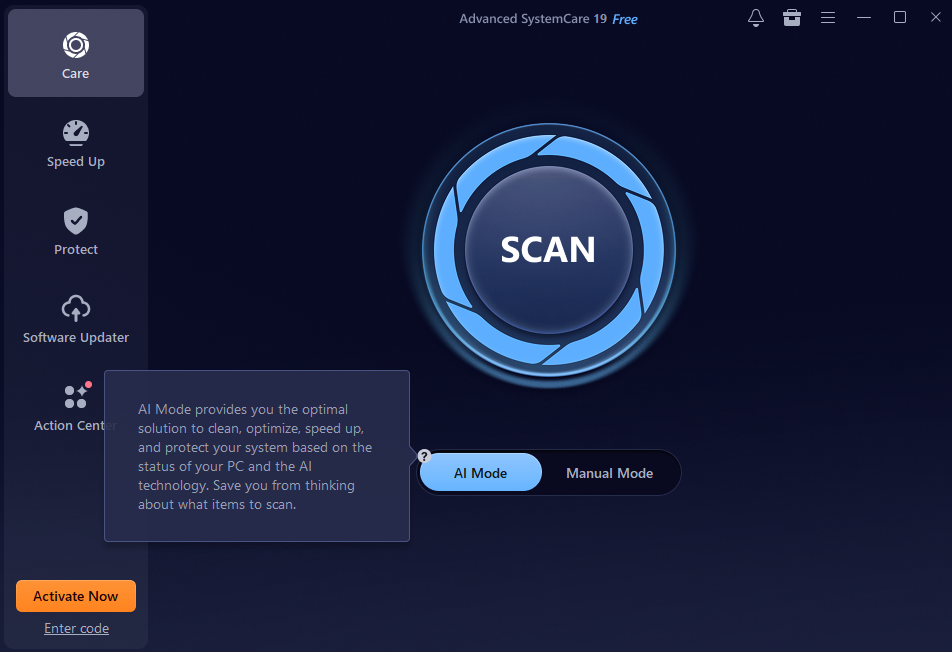
Step 1: Perform an AI Scan (1-Click Health Checker)
Start by running a full system scan to identify performance issues.
How to do it:
- Install and launch this Windows cleaner
- Go to the Care tab
- Select AI Mode (or 1-Click Health Checker)
- Click SCAN
This scan detects:
- Junk files
- Registry errors
- Privacy traces
- System bottlenecks
Once the scan completes, click Fix to automatically clean and optimize your system.
Why it matters:
This step removes unnecessary data that slows down system processes during boot.
Step 2: Optimize Startup Items (The #1 Fix)
This is the most important step for improving startup speed.
How to do it:
- Navigate to the Speed Up tab
- Click Startup Optimizer
- Review categorized items:
- Startup Programs
- Services
- Scheduled Tasks
Disable non-essential applications, especially those marked with High impact.
Examples include: Messaging apps, Auto-updaters, Cloud services you don’t need immediately.
Pro Tip:
Advanced SystemCare suggests which items are safe to disable, so you don’t accidentally break anything.
Result:
Fewer programs at startup = faster boot time.
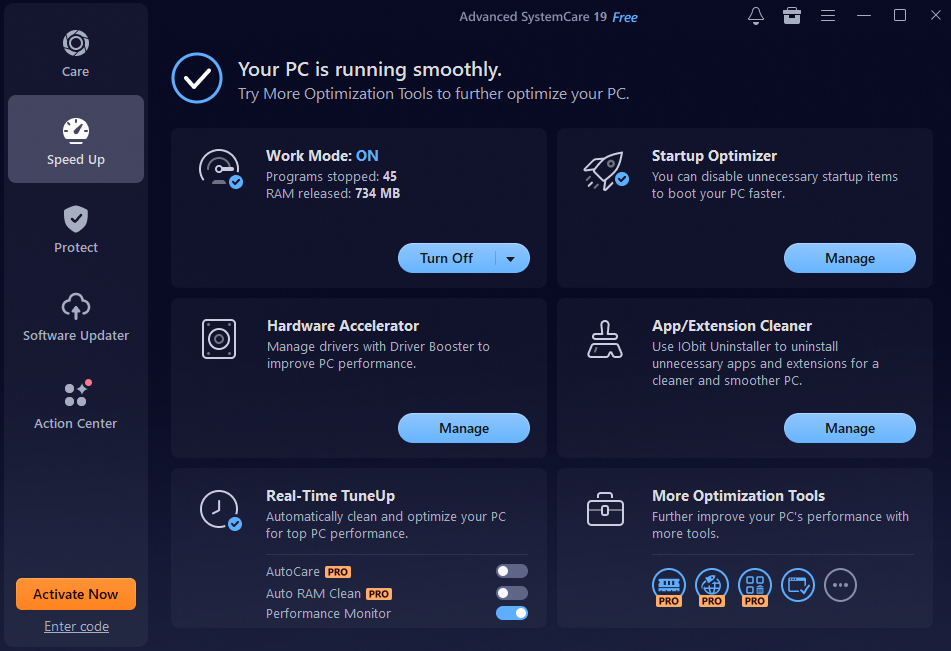
Step 3: Enable Turbo Boost (Post-Startup Performance)
Even after startup, your PC can feel sluggish due to background processes. Turbo Boost fixes that.
How to enable it:
- Go to the Speed Up tab
- Select Turbo Boost
- Turn it ON
- Choose a mode: Work Mode, Game Mode
This feature temporarily disables unnecessary background services, freeing up system resources.
Benefit:
Your PC becomes more responsive immediately after startup.
Step 4: Configure Advanced SystemCare Settings for Faster Boot
Ironically, even optimization tools can slow startup if not configured properly.
Fix this by:
- Clicking the Settings (gear icon)
- Going to General Settings
- Unchecking: “Load Advanced SystemCare Tray at Windows startup”.
Why this helps:
It prevents the software itself from adding to startup load.
Key Features That Make a Difference
Here’s why Advanced SystemCare 19 stands out among multiple PC cleaner:
- Startup Optimizer: Pinpoints and disables high-impact startup items to significantly reduce boot time.
- AI Scan / 1-Click Health Checker: Automatically detects and fixes performance issues using intelligent optimization.
- Deep Clean Tools: Removes hidden junk files and repairs registry errors for a cleaner PC system.
- Turbo Boost: Improves system responsiveness after startup by disabling unnecessary background processes.
- System Optimization Tools: Enhances CPU, RAM, and disk usage efficiency for smoother performance.
- Lightweight Operation: Runs efficiently in the background without slowing down your system.
Additional Tips for Better PC Optimization
A slow Windows 11 startup can be frustrating, but with the right tools and tweaks, you can significantly boost boot speed and overall performance for a faster, smoother computing experience.
- Upgrade to an SSD: Switching from an HDD to an SSD significantly reduces boot time and improves overall system responsiveness.
- Uninstall Unused Software: Remove unnecessary programs to free up system resources and reduce startup load.
- Update Drivers: Use the Hardware Accelerator to keep drivers updated for better compatibility and faster performance.
- Reduce Visual Effects: Disable unnecessary animations and visual effects in Windows settings to improve speed.
- Keep Windows Updated: Install regular updates to ensure optimal performance, stability, and security enhancements.
- Maintain Free Disk Space: Keep at least 10 GB of free space to allow Windows to operate efficiently without slowdowns.
- Enable Fast Startup: Turn on Fast Startup from Control Panel → Power Options to reduce boot time and speed up system launch.
Final Thoughts
A slow Windows 11 startup doesn’t have to be permanent. With the right tools and a few smart adjustments, you can restore your PC’s speed and efficiency in no time.
Advanced SystemCare 19 Free makes the entire process simple with AI-powered optimization, powerful cleaning tools, and intuitive controls. By focusing on startup optimization, deep cleaning, and system tuning, you can enjoy a noticeably faster boot time—sometimes up to 200% improvement.
If you’re tired of waiting for your PC to start, now is the perfect time to take control and optimize your system the smart way.